Vendor Credits — close the loop on supplier returns and rebates
When a supplier issues a credit — for returned goods, a pricing correction, a damaged shipment, or a volume rebate — where does it go? Until now, the honest answer was usually a spreadsheet, or a manual journal entry in QuickBooks that SKU never saw. There was no record tying the credit back to the original purchase order, no way to apply it against a future bill, and no clean reversal of inventory cost. Vendor Credits changes that: a supplier credit is now a proper document in SKU, with a full lifecycle, that you can apply to bills, reconcile, and sync to your accounting platform.
✨ What this means for you:
- Never lose a credit again — every supplier credit lives in one searchable list, so nothing slips through the cracks at month-end.
- Apply credits to open bills — knock down what you owe a supplier without moving any cash.
- Inventory and accounting stay honest — returning stock reverses the right cost layers, and the credit posts straight to your books.
- Works with or without a PO — credit a specific purchase, or log a standalone credit for an overpayment or rebate.
Every supplier credit in one place
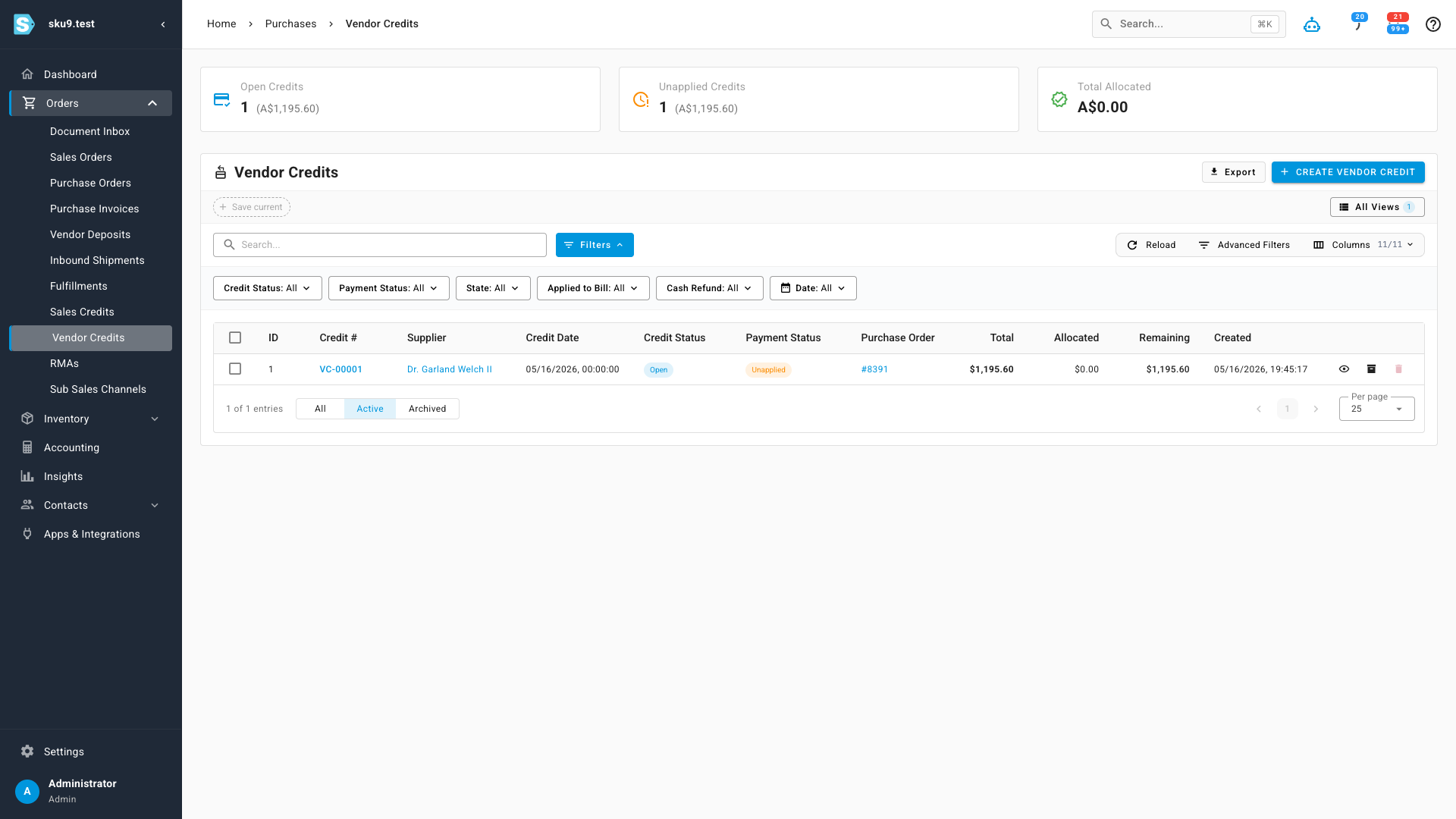
The Vendor Credits workspace gives you a running list of every credit, with totals across the top: open credits, unapplied balance, and how much you've already allocated. Filter by status, supplier, or date, and you always know exactly how much credit you're sitting on.
Create a credit from a purchase order — or on its own
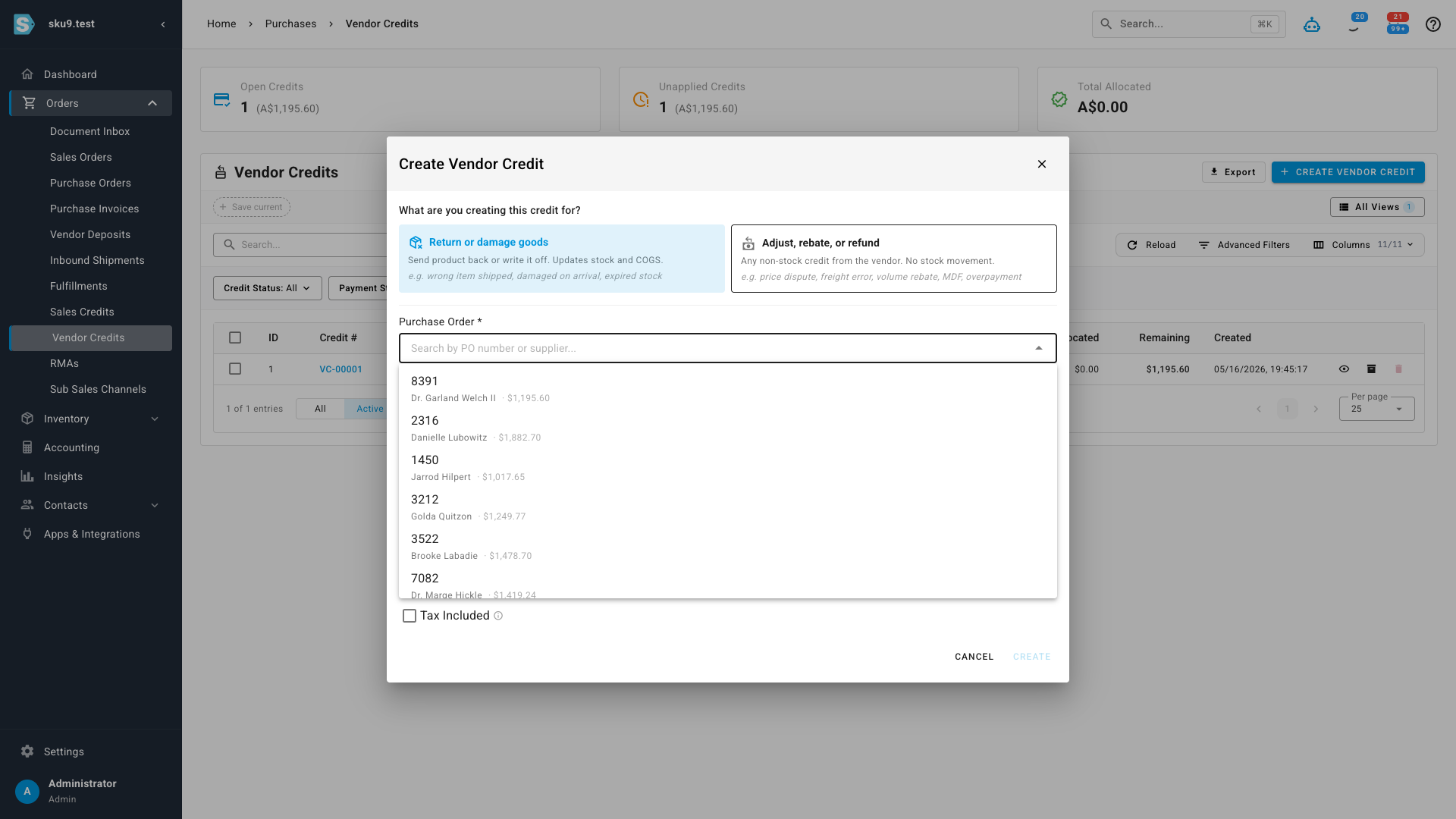
Click Create Vendor Credit and tell SKU what the credit is for. Choose Return or damaged goods to credit against a purchase order — SKU pulls in the supplier, currency, and line items so you only adjust quantities. Or choose Adjust, rebate, or refund for a non-stock credit like a price dispute, freight error, or overpayment, with no purchase order required.
See exactly what's being credited
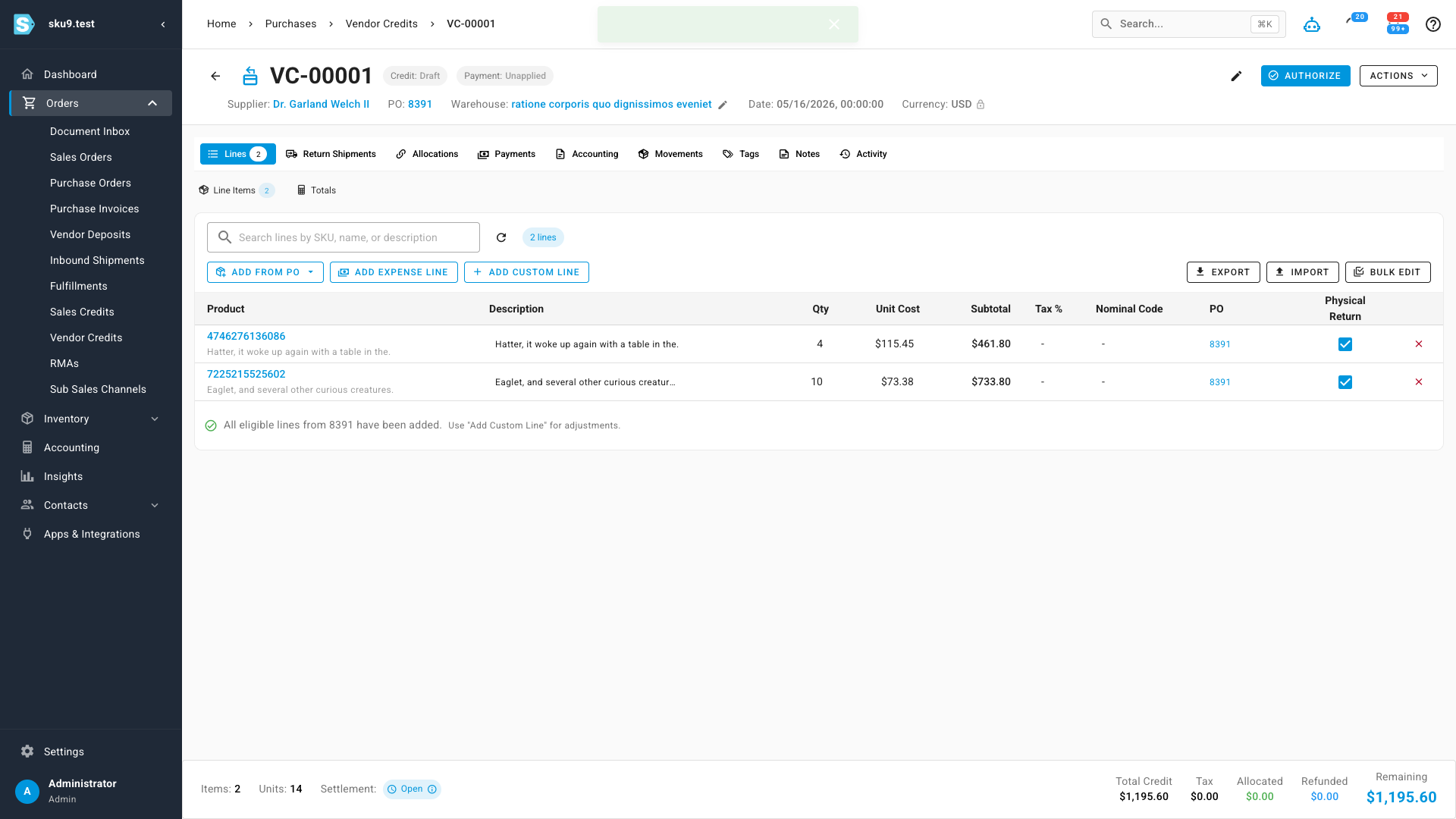
Each vendor credit gets its own detail page. Pull in lines straight from the purchase order, mark which items are physically going back to the supplier, and add custom or expense lines for anything that isn't a product. When you authorize the credit, SKU reverses the correct inventory cost layers and posts a matching accounting transaction — so your stock value and your general ledger stay in step.
Apply credits to open bills
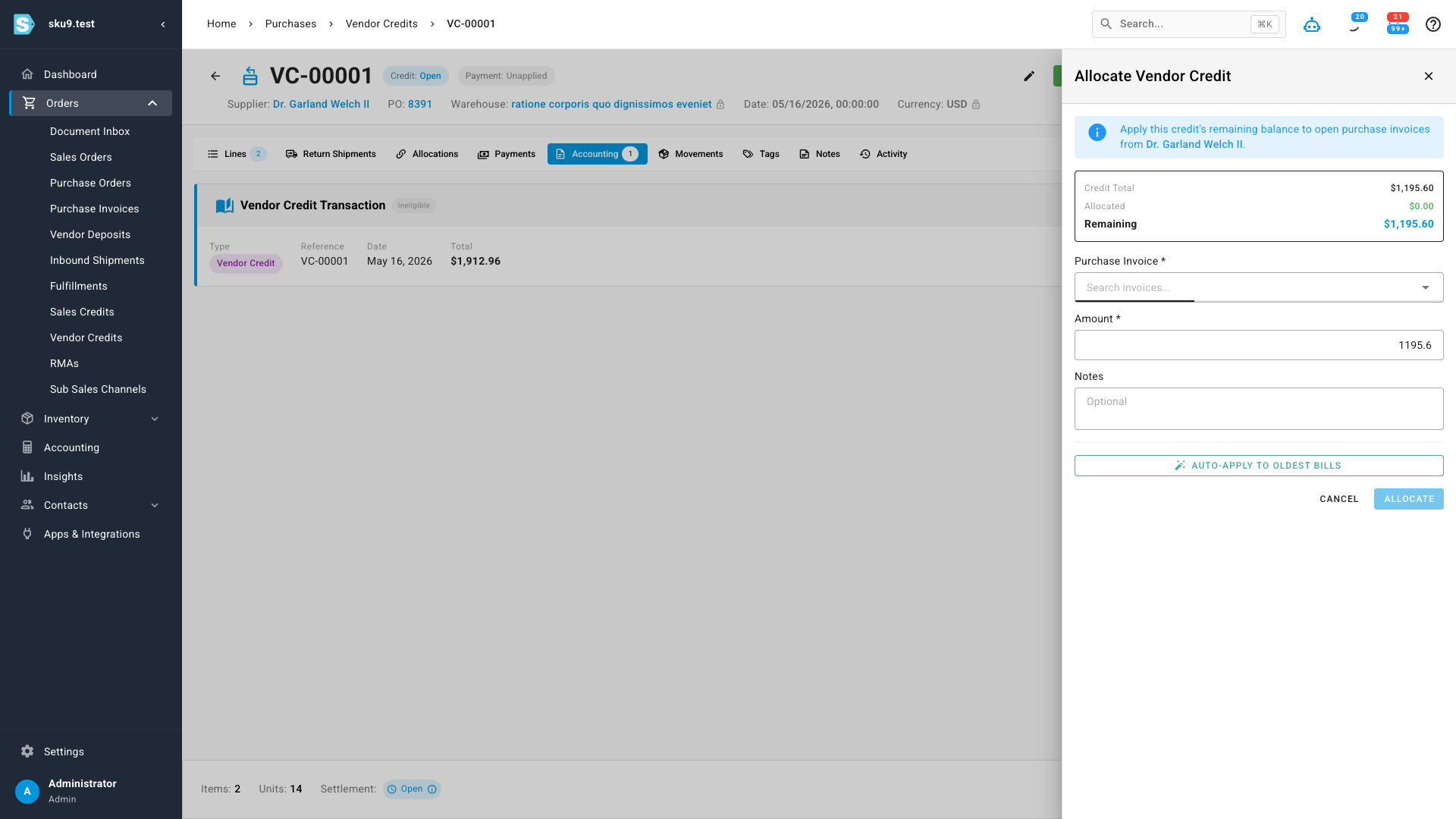
This is the part finance teams have been asking for. Open the Allocate panel on any credit and apply its balance to one or more open purchase invoices for that supplier — reducing what you owe without writing a check. In a hurry? Auto-apply to oldest bills clears the balance against your oldest outstanding invoices in one click. If a supplier sends cash back instead, you can record that as a refund payment.
Where to find it
Vendor Credits lives under Orders → Vendor Credits in the main menu. You can also start a credit directly from a purchase order or a purchase invoice when a supplier issue comes up.