Apply Customer Store Credit to Sales Orders — settle a balance without taking a payment
When a customer has a store credit on file and a sales order they haven't paid yet, the obvious thing to do is use one to settle the other. Until now that took several manual steps — recording a fake payment, remembering to mark the credit as used, and reconciling both sides by hand. Applying Store Credit to Sales Orders turns that into a two-click flow: open the order's Payments tab, pick the credits to apply, and SKU records the allocation, updates the order's balance, and keeps the credit's remaining balance in sync — all in one go.
✨ What this means for you:
- Apply a customer's open store credit directly to any unpaid sales order — no fake payments, no manual reconciliation.
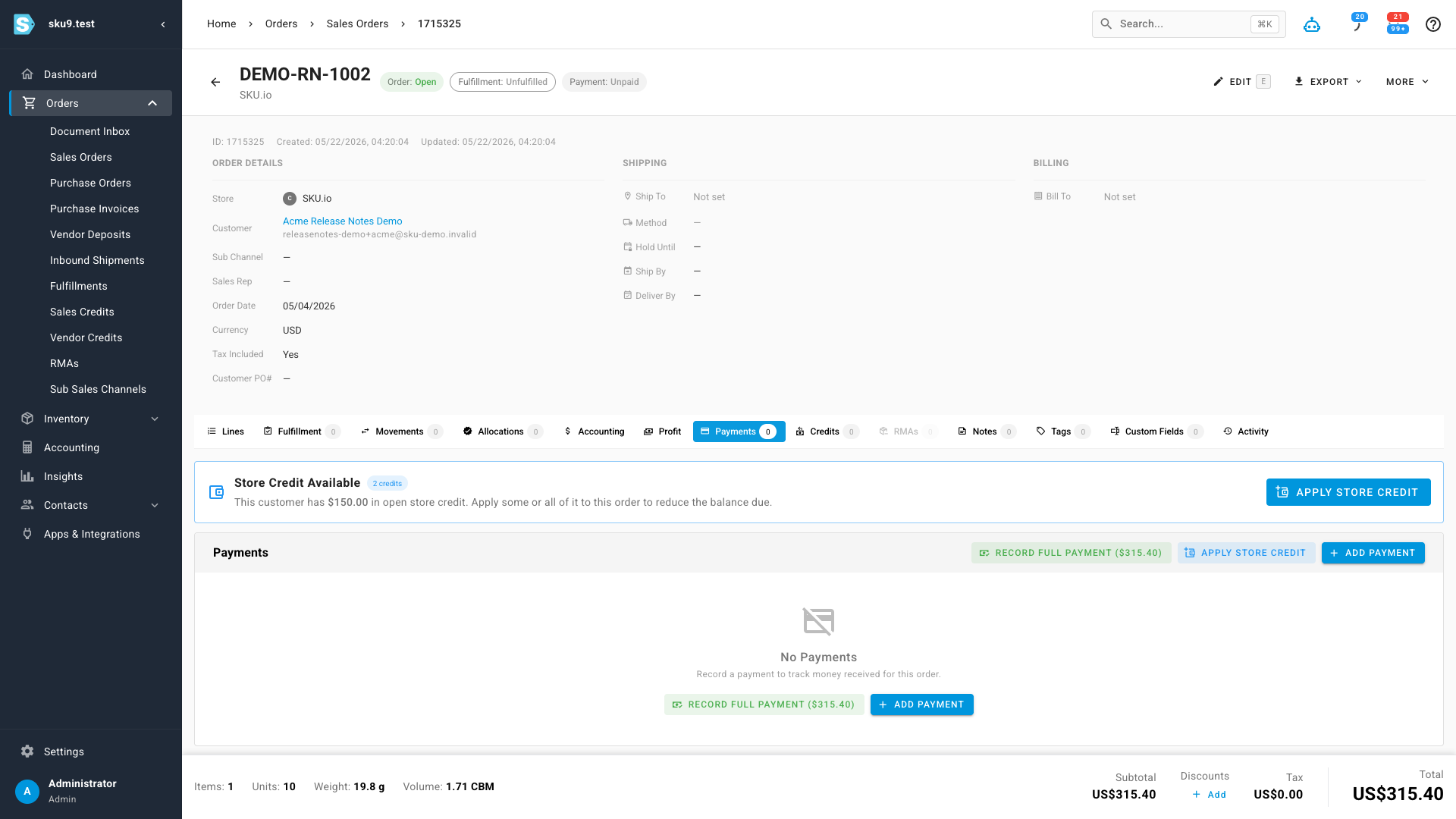
- See available credit the moment you open the order — a banner on the Payments tab shows the total open balance and how many credits are available.
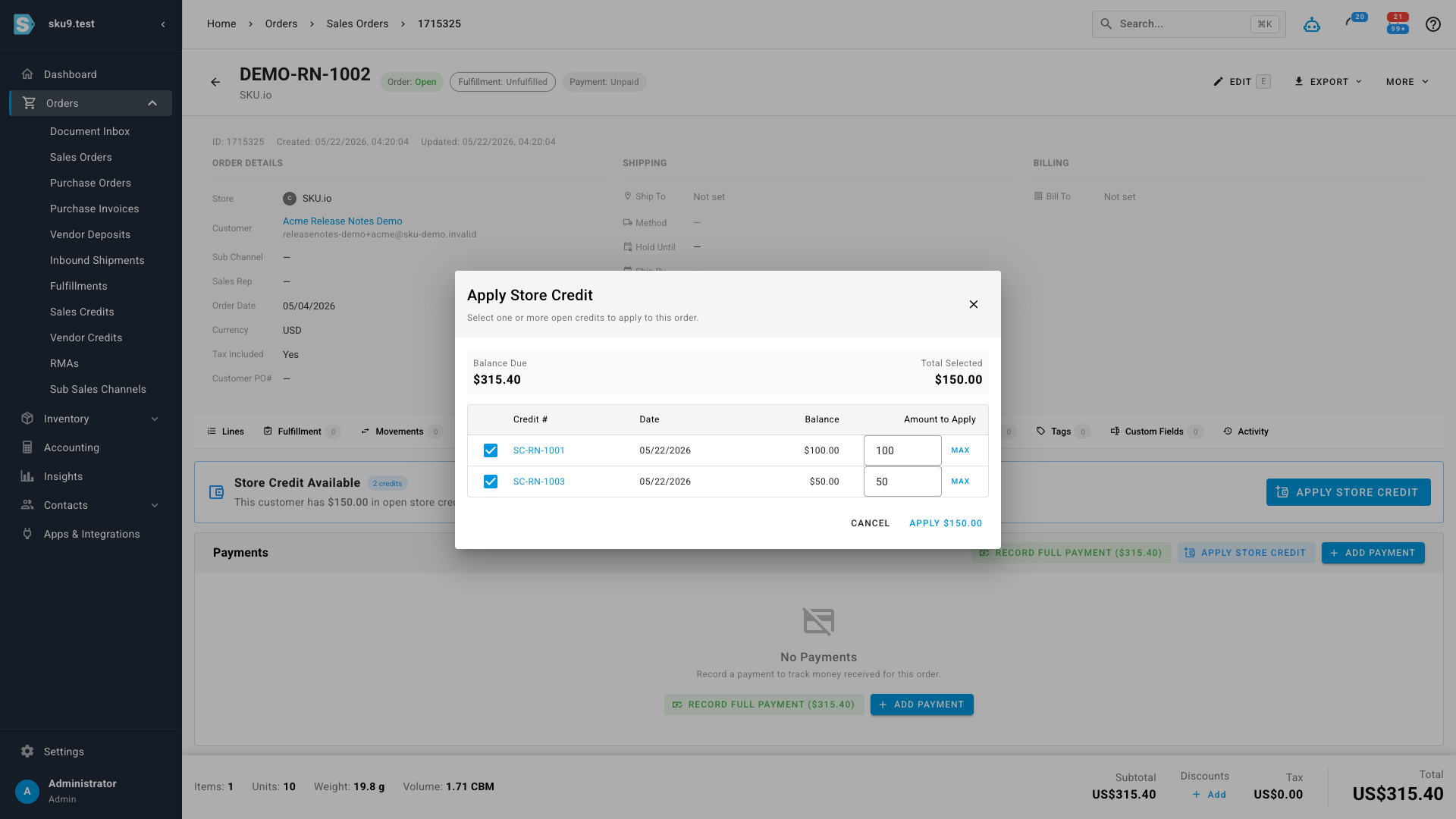
- Split a single payment across multiple credits at once, with per-credit amounts and a running total against the balance due.
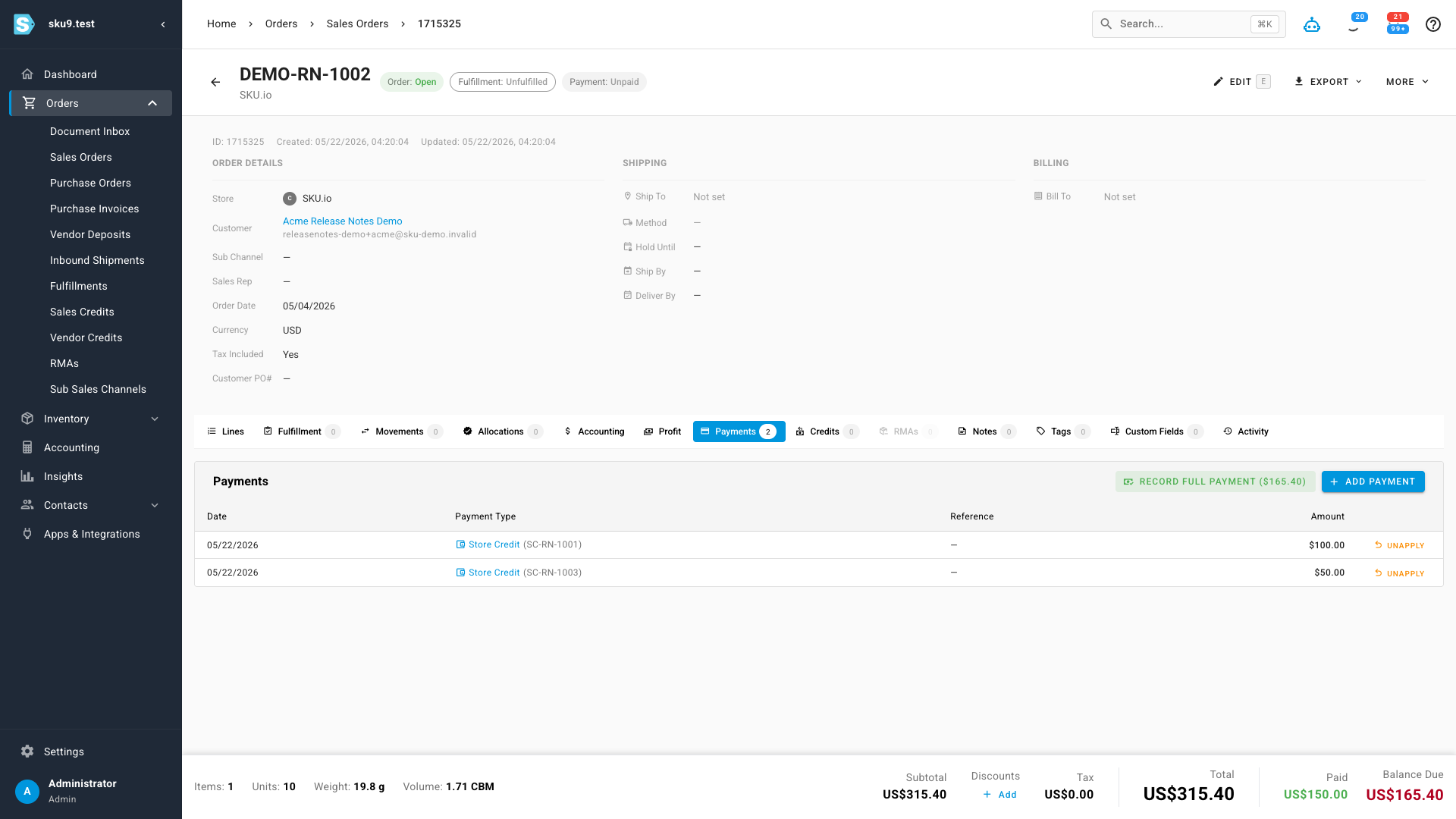
- Each applied credit is recorded as its own payment row so the order's payment history is clear and auditable.
- Made a mistake? Unapply in one click — the allocation reverses and the credit's balance comes straight back.
See available credit at a glance
Open any unpaid sales order with a customer who has open store credit and you'll see a new banner at the top of the Payments tab. It shows the total credit available and how many open credits the customer has — so you know there's something to apply before you go looking for it.
Pick the credits, set the amounts
Click Apply Store Credit and a dialog opens listing every open credit the customer has, with its number, date, and current balance. Tick the credits you want to use and the amount auto-fills to the maximum that fits the balance due — or type in a custom amount per credit if you only want to apply some of one. A live Total Selected total sits right next to the Balance Due, so you can see exactly where you'll land before you commit.
A clean audit trail — and one-click unapply
Once applied, each credit shows up as its own row on the order's Payments tab — labelled with the credit number it came from — and the order's paid total and balance due update immediately. If something needs to be undone, the Unapply button on each row reverses the allocation and returns the full amount to the customer's open credit balance.
Where to find it
Open any sales order with an unpaid balance for a customer who has open store credit, then go to the Payments tab — the Store Credit Available banner and the Apply Store Credit button are right there.