Listings & Channel Inventory — one table for every product on every channel
If you sell on more than one channel, you already know the problem: to check a listing you had to find its product first, open it, and dig into the Listings tab — one product at a time. There was no way to ask "show me every Amazon listing" or "which channels are out of sync with my real stock?" without clicking through your whole catalog. The new Listings and Channel Inventory pages fix that. They give you a single table of every listing across every connected channel — and a dedicated view that shows, at a glance, exactly where each channel's stock has drifted from SKU.io and lets you correct it in bulk.
✨ What this means for you:
- See every product listing across every channel in one searchable table — no more opening products one at a time.
- Filter to a single channel in one click with per-integration tabs (Amazon, Shopify, eBay, Walmart, WooCommerce, and more).
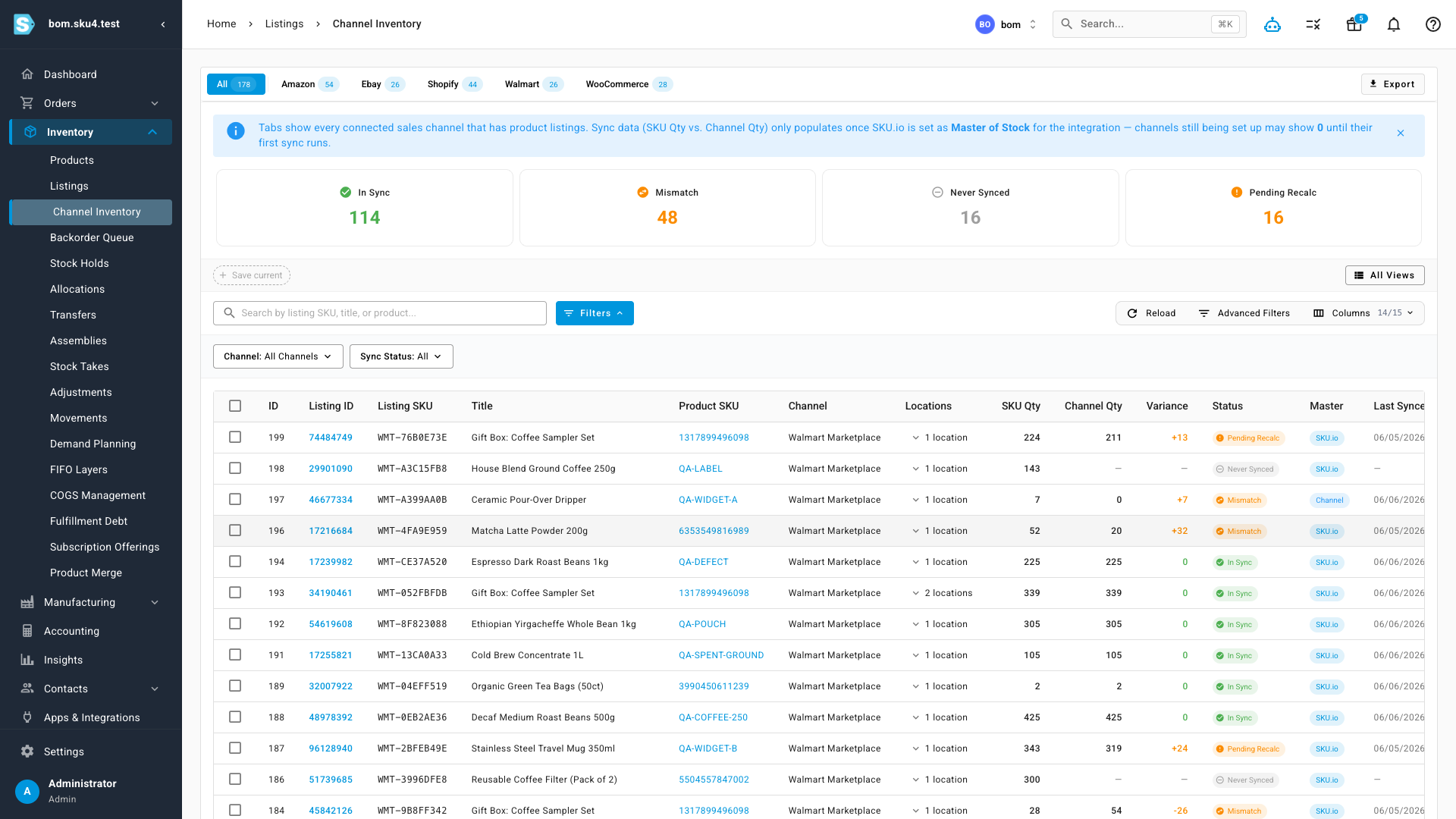
- A dedicated Channel Inventory view shows where each channel's quantity matches SKU.io and where it has drifted — In Sync, Mismatch, Never Synced, or Pending Recalc — with one-click filtering on each.
- Spot discrepancies instantly with a variance column comparing your SKU.io quantity to what the channel is actually showing.
- Select listings and edit their inventory settings in bulk — set master of stock, push quantities, or trigger a recalculation across dozens of listings at once.
A single table for every listing
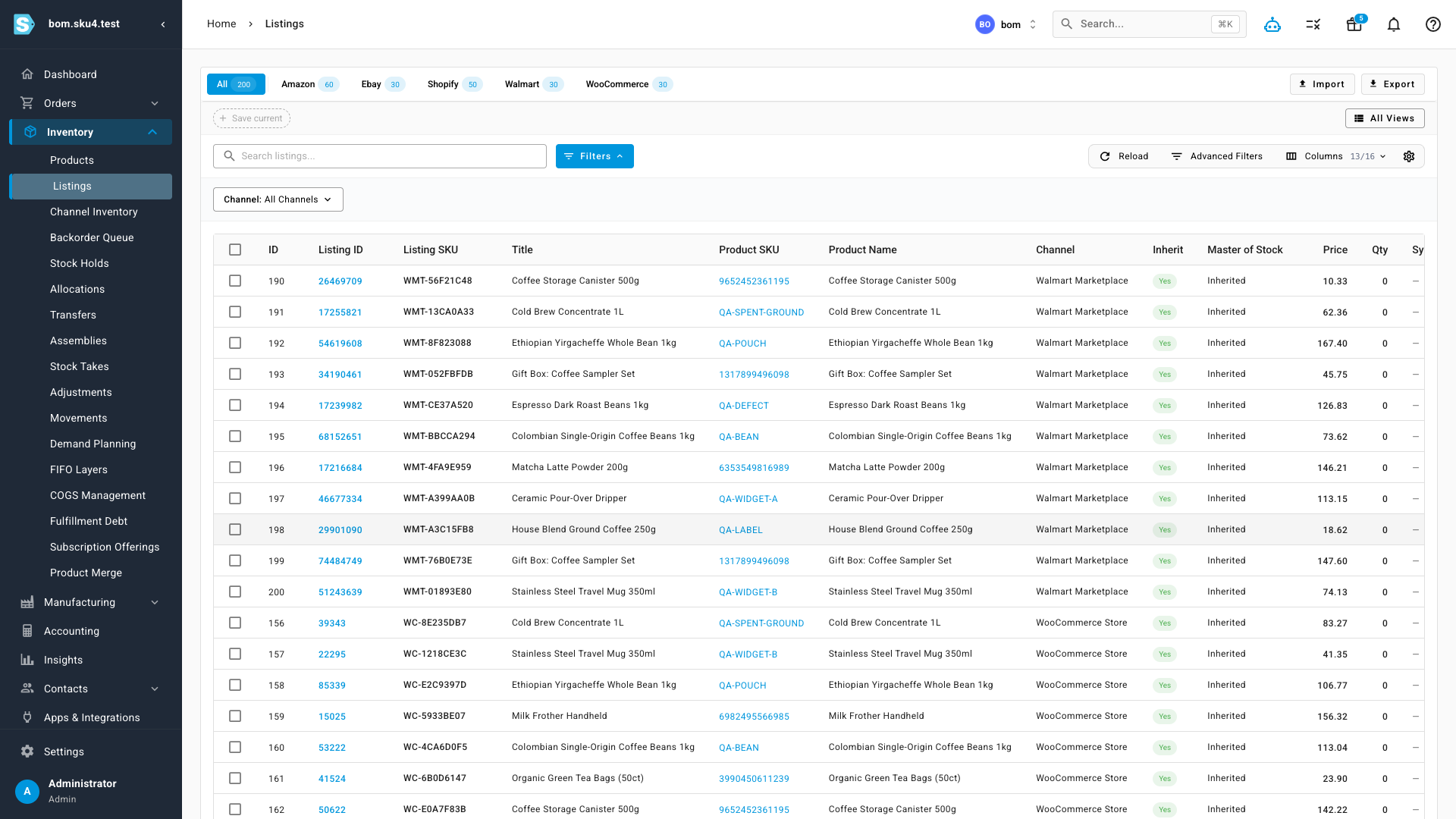
Listings is a new page under Inventory → Listings. It lists every product listing you have across every connected sales channel, with the listing SKU, title, the product it's mapped to, the channel, price, and quantity. Per-integration tabs across the top let you jump straight to a single channel, and search, advanced filters, saved views, and a column picker work exactly like the rest of SKU's data tables. Every listing links straight to its detail page, and the product SKU links to the product — so you're always one click from where you need to be.
See every channel's stock health at a glance
The companion Channel Inventory page answers the question multi-channel sellers ask constantly: is what the channel is showing actually what I have? Each row compares your SKU.io quantity against the quantity the channel is reporting and flags the difference as a variance. Summary cards across the top break your whole catalog into In Sync, Mismatch, Never Synced, and Pending Recalc — and each card is a one-click filter, so you can pull up just the listings that have drifted and ignore everything that's healthy. The Master column shows whether SKU.io or the channel is authoritative for each listing, and Last Sync tells you how fresh the numbers are.
Fix drift in bulk
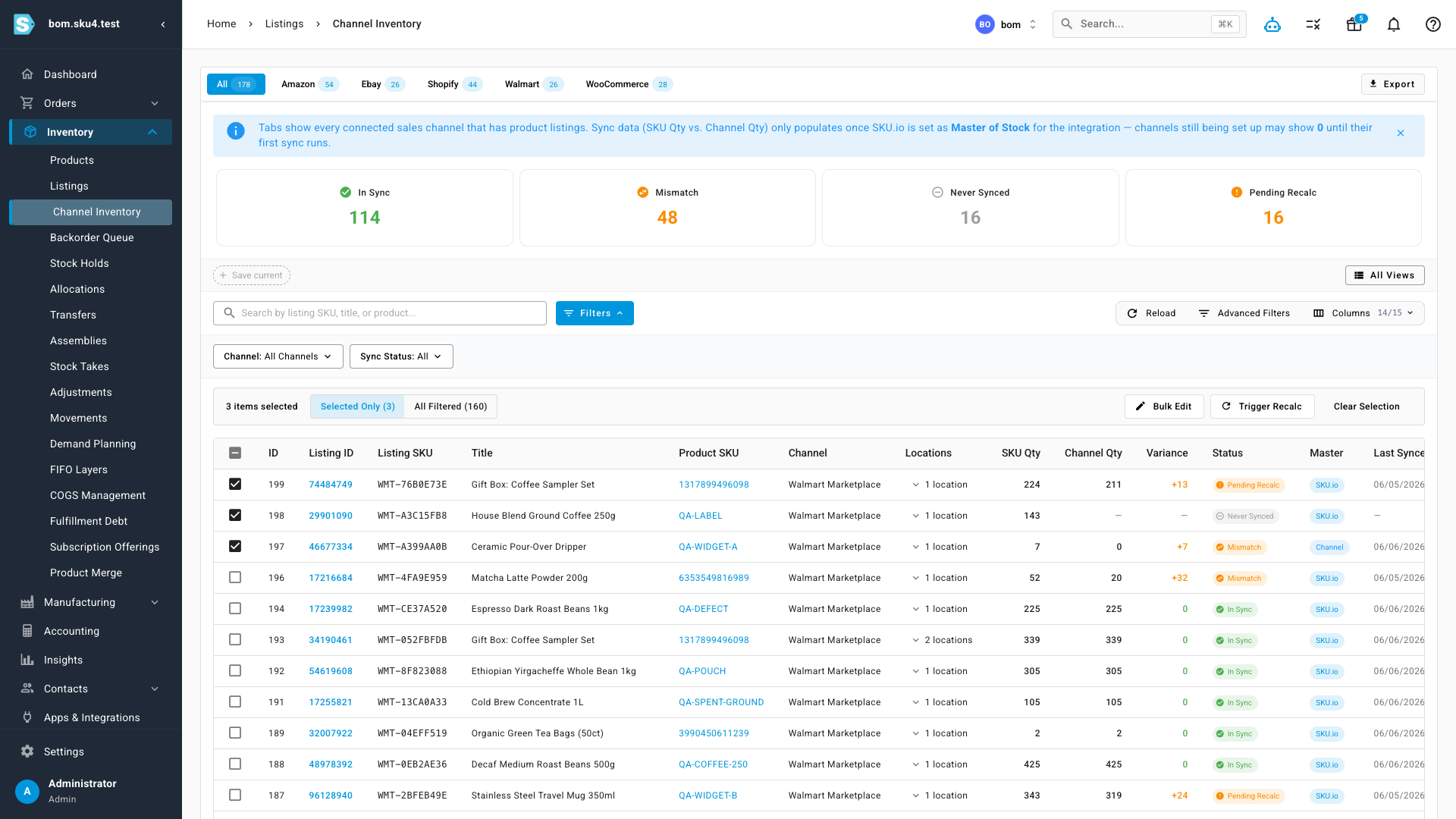
Finding the problem is only half the job. Select any set of listings — or everything matching your current filter — and a bulk action bar appears with Bulk Edit and Trigger Recalc. Triggering a recalculation refreshes SKU.io's available quantity for those listings on the spot.
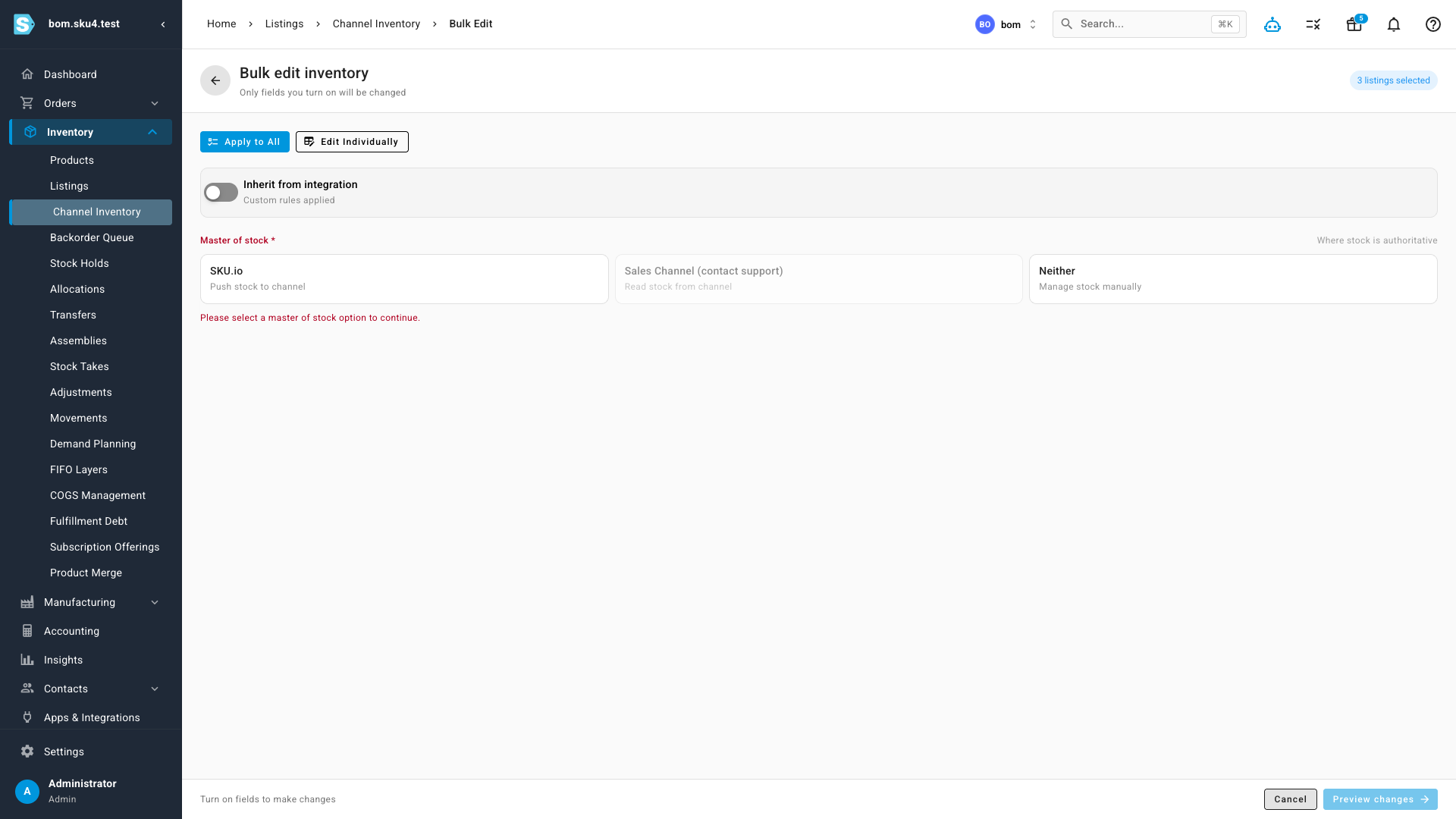
Bulk Edit opens a focused screen where you change only the settings you turn on — leaving everything else untouched. Set the master of stock for the whole selection (push SKU.io's stock to the channel, read the channel's stock into SKU.io, or manage it manually), toggle whether listings inherit their integration's rules, then preview the changes before they're applied.
Where to find it
Open Inventory → Listings for the full cross-channel listings table, and Inventory → Channel Inventory for the stock-health view, summary cards, and bulk inventory editing.