Grid View — Edit Your Data Tables Inline
Fixing one field on a record used to mean a full detour: open the purchase order, change the supplier or the date, save, then click back to the list. Do that across a dozen rows and it's a dozen round-trips. Now your data tables have a new grid view — flip a switch and the list becomes a spreadsheet-style grid where you edit values directly in the cells. Your changes save as you go, and you never leave the list.
✨ What this means for you:
- Edit records without opening a single detail page
- Update one row after another, spreadsheet-style, without losing your place
- Switch between the familiar table and the new grid whenever you like — your choice is remembered for each list
- Edit text, dates, and dropdown fields (suppliers, payment terms, and more) right where you see them
Flip any list into a grid
A view toggle now sits in the toolbar of your data tables. Click it to turn the familiar table into a grid, and click again to switch back. SKU remembers your preference for each list, so the view you like is waiting for you next time.
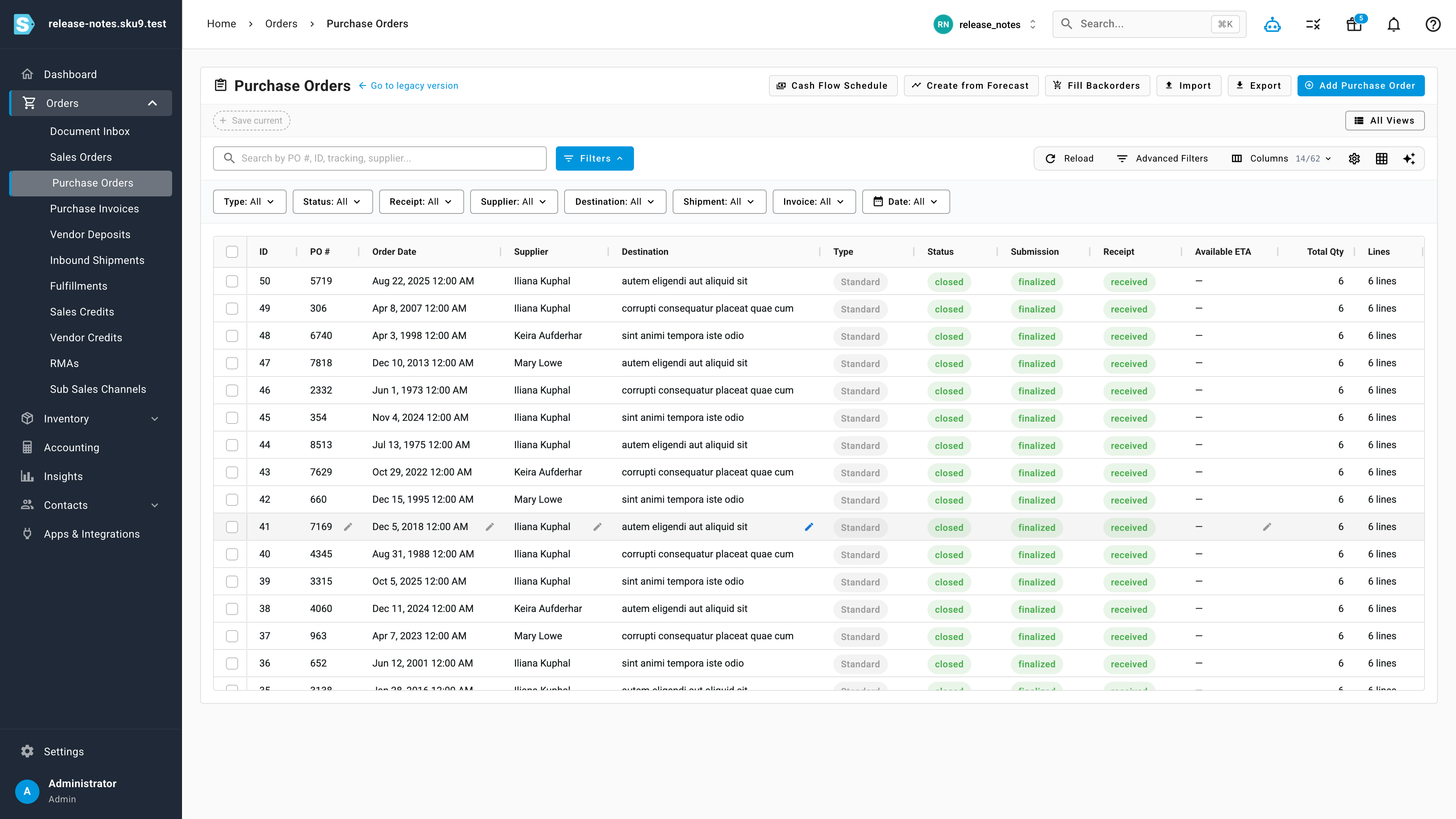
Edit right in the cell
Select a cell and start typing — or double-click it — to edit the value in place. The right control opens for each field, right inside the row. Here a purchase order's supplier is being reassigned straight from a dropdown, without opening the order:
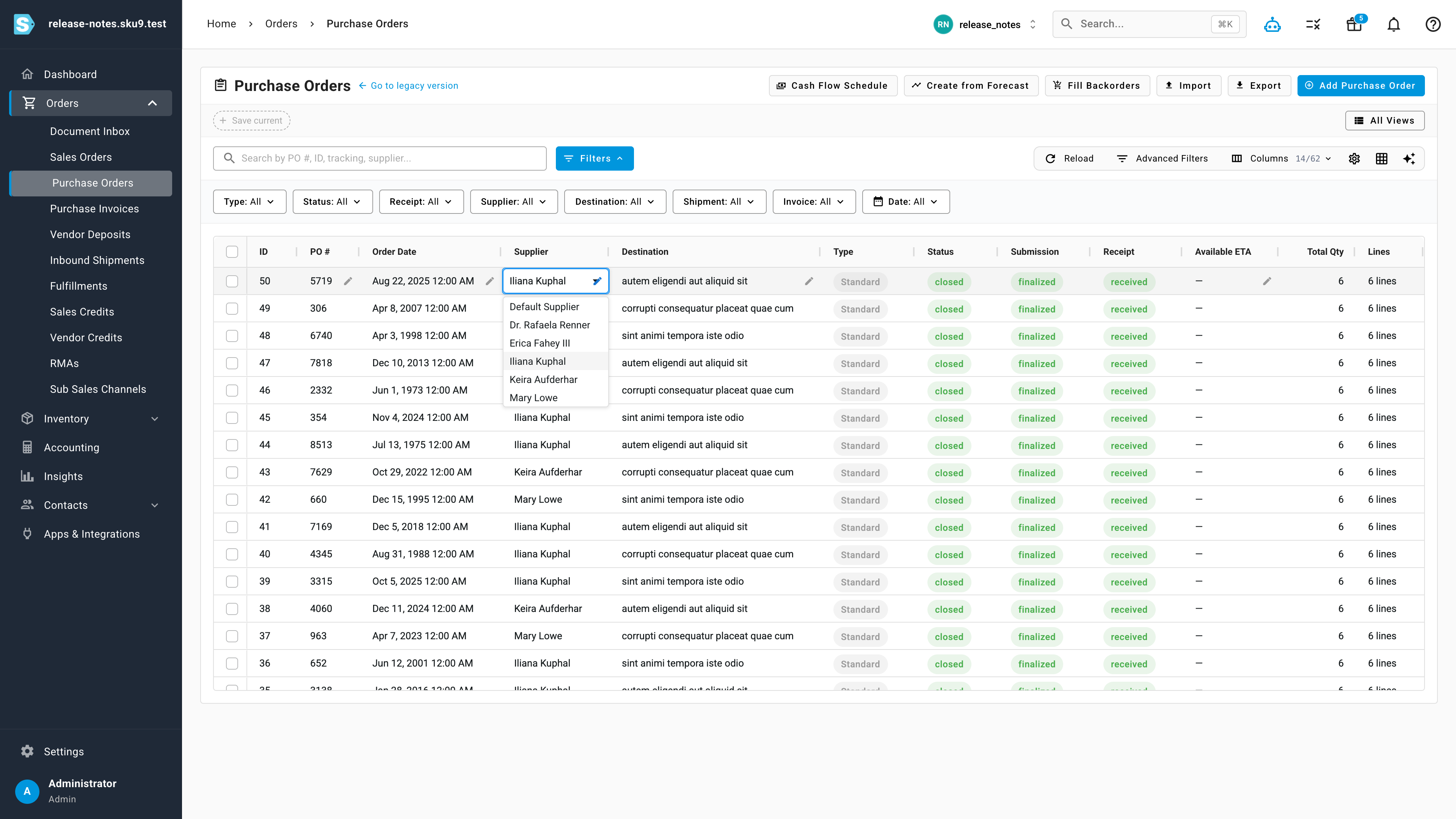
Dates and dropdowns, no detour
Dates work the same way — pick a new value from an inline date picker and it's saved in place. The grid keeps everything you rely on from the table, including your column choices and filters, so the only thing that changes is how quickly you can make edits.
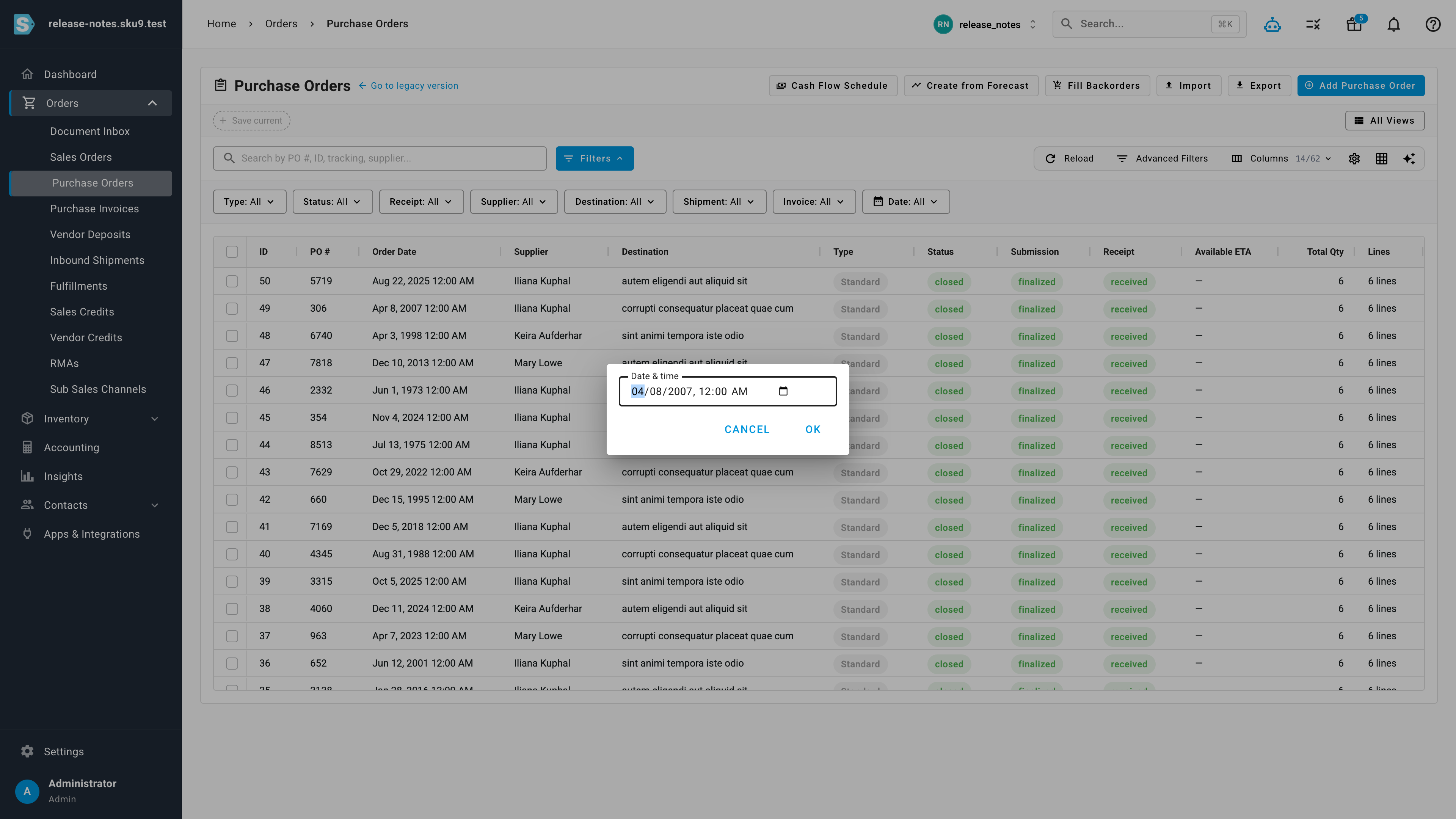
Where to find it
Open a supported list — start with Orders → Purchase Orders — and look for the table/grid toggle in the table's toolbar. Switch to grid view and start editing. The grid view is also rolling out across other order and purchasing lists, including Sales Orders, Purchase Invoices, Sales Credits, and Vendor Credits.