Command Palette & Keyboard Shortcuts — Jump Anywhere, Hands on the Keyboard
Finding a specific product or order used to mean clicking into the right list, waiting for it to load, then filtering or scrolling until it turned up — and reaching for the mouse for every hop between pages. Now SKU has a redesigned global search and a full set of keyboard shortcuts. Press ⌘K from anywhere to open a command palette that searches across your products, orders, and contacts at once — or jump straight to any page, and select and open rows in your data tables, all without leaving the keyboard.
✨ What this means for you:
- Search products, sales orders, purchase orders, customers, and suppliers from one box — press ⌘K anywhere
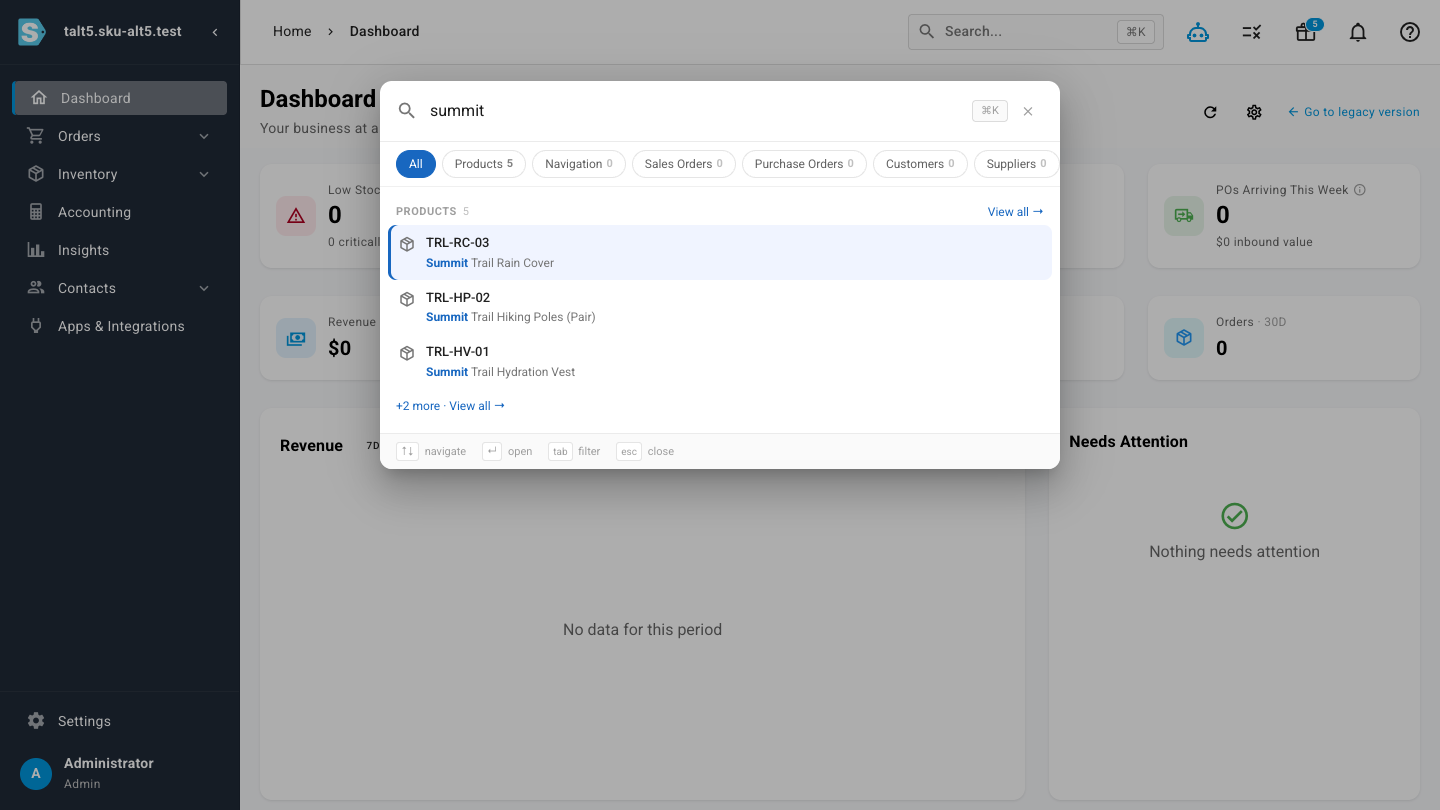
- Results are grouped by type and matched text is highlighted, so the right record stands out
- Jump between sections with two-key shortcuts —
gthensfor Sales Orders,gthenrfor Products, and more - Move, select, and open rows in any data table without touching the mouse
- Press
?anywhere to see the full list of shortcuts
Search everything from one box
Press ⌘K (or click the search bar at the top of any page) to open the command palette and start typing. SKU searches your products, sales orders, purchase orders, customers, and suppliers at the same time and groups what it finds by type. The chips along the top show how many matches each type has, the text you typed is highlighted in every result, and you can narrow to a single type with Tab — or by typing a prefix like p: for products or o: for orders.
Jump anywhere without typing
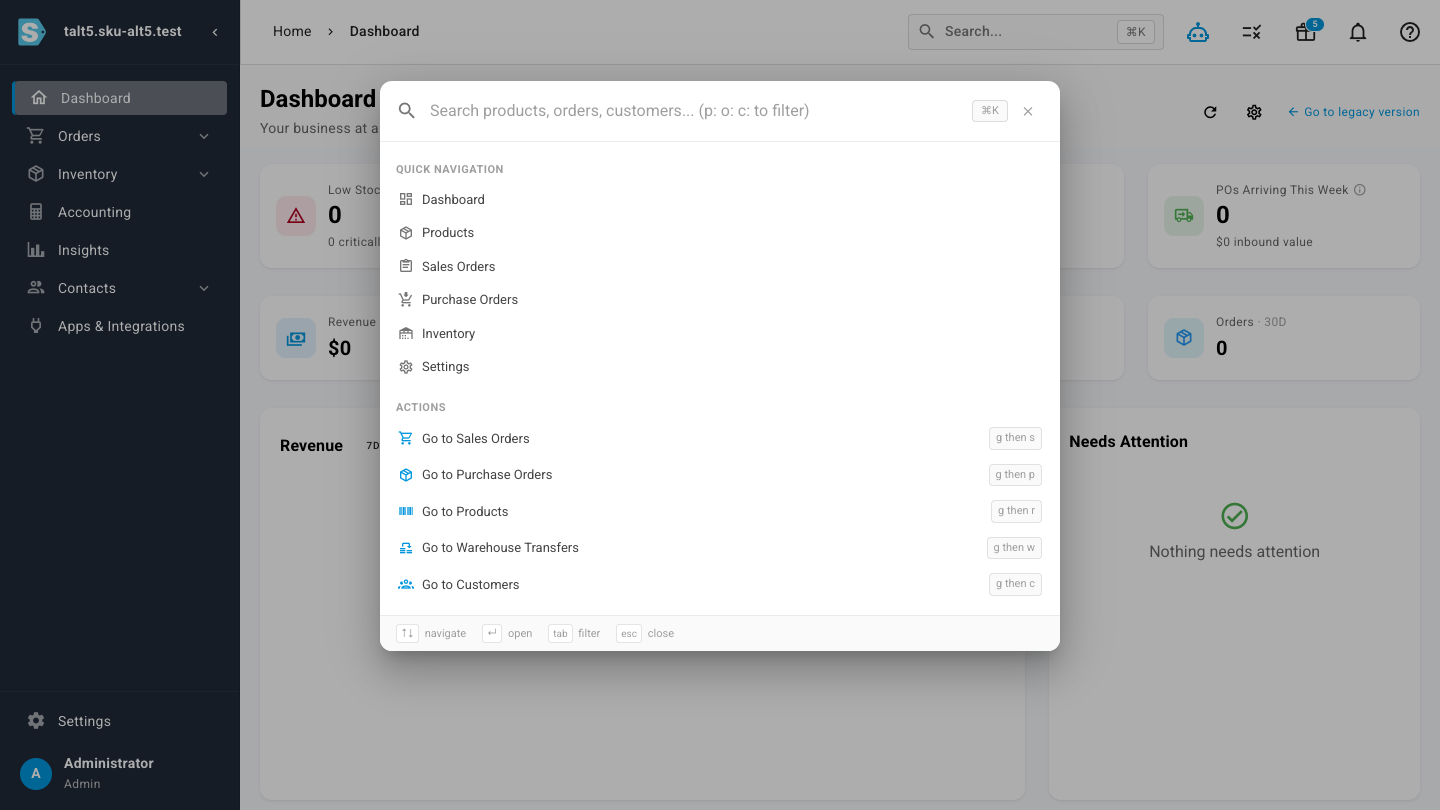
Open the palette without a search term and it becomes a launcher. Quick Navigation lists your main sections — Dashboard, Products, Sales Orders, Purchase Orders, Inventory, Settings — and each Action shows its two-key shortcut, so you pick up the keystroke while you use the menu. Choose one with the arrow keys and Enter, or skip the palette entirely: press g then s to land on Sales Orders, g then r for Products, g then p for Purchase Orders.
Drive your data tables from the keyboard
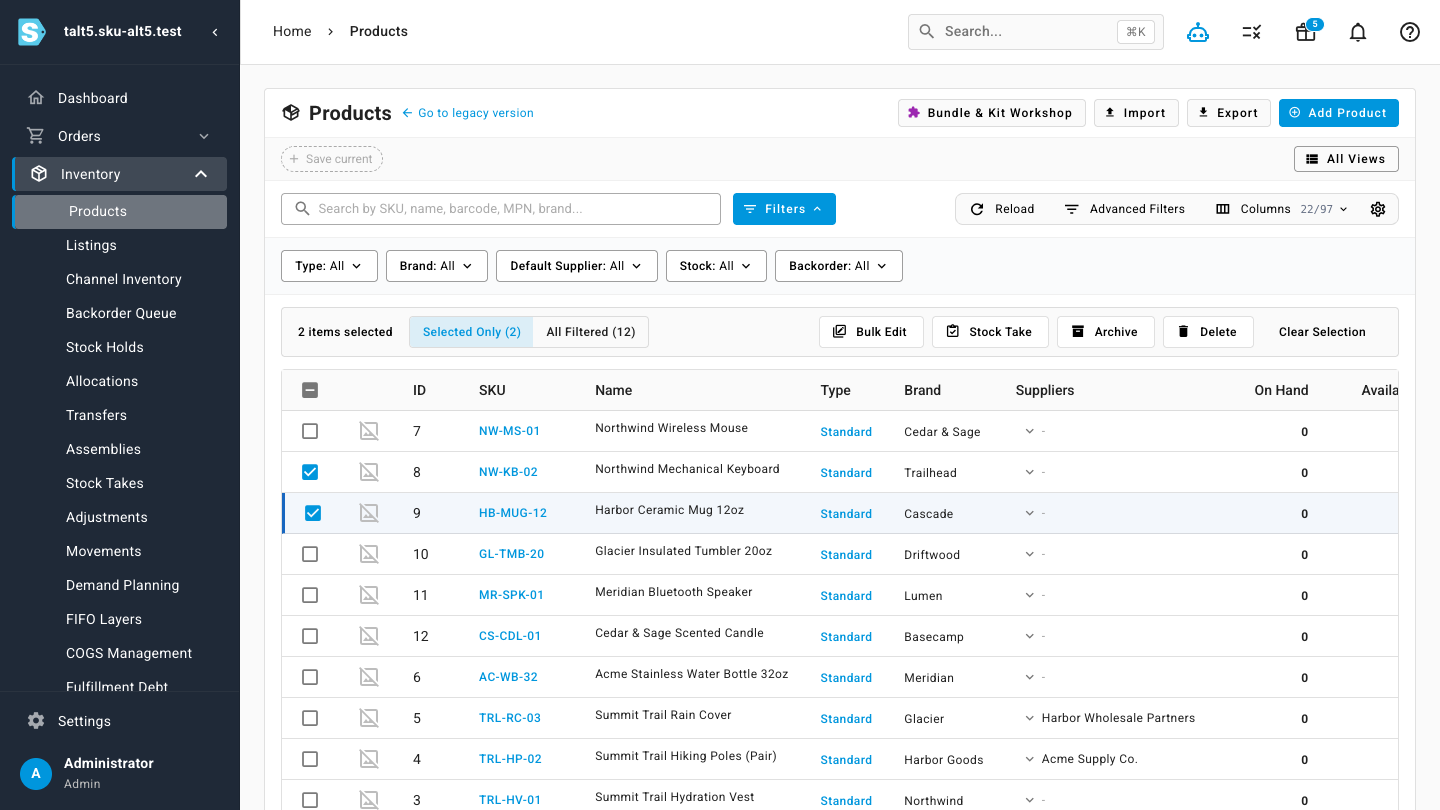
Every data table now responds to the keyboard. Use J and K (or the arrow keys) to move the focused row up and down, X or Space to select and deselect rows, and Enter to open the focused record. Select several rows and the bulk actions toolbar appears — edit, archive, or delete them together — all without reaching for the mouse. Press / to drop into the page's search box, and Escape to step back out.
See every shortcut at a glance
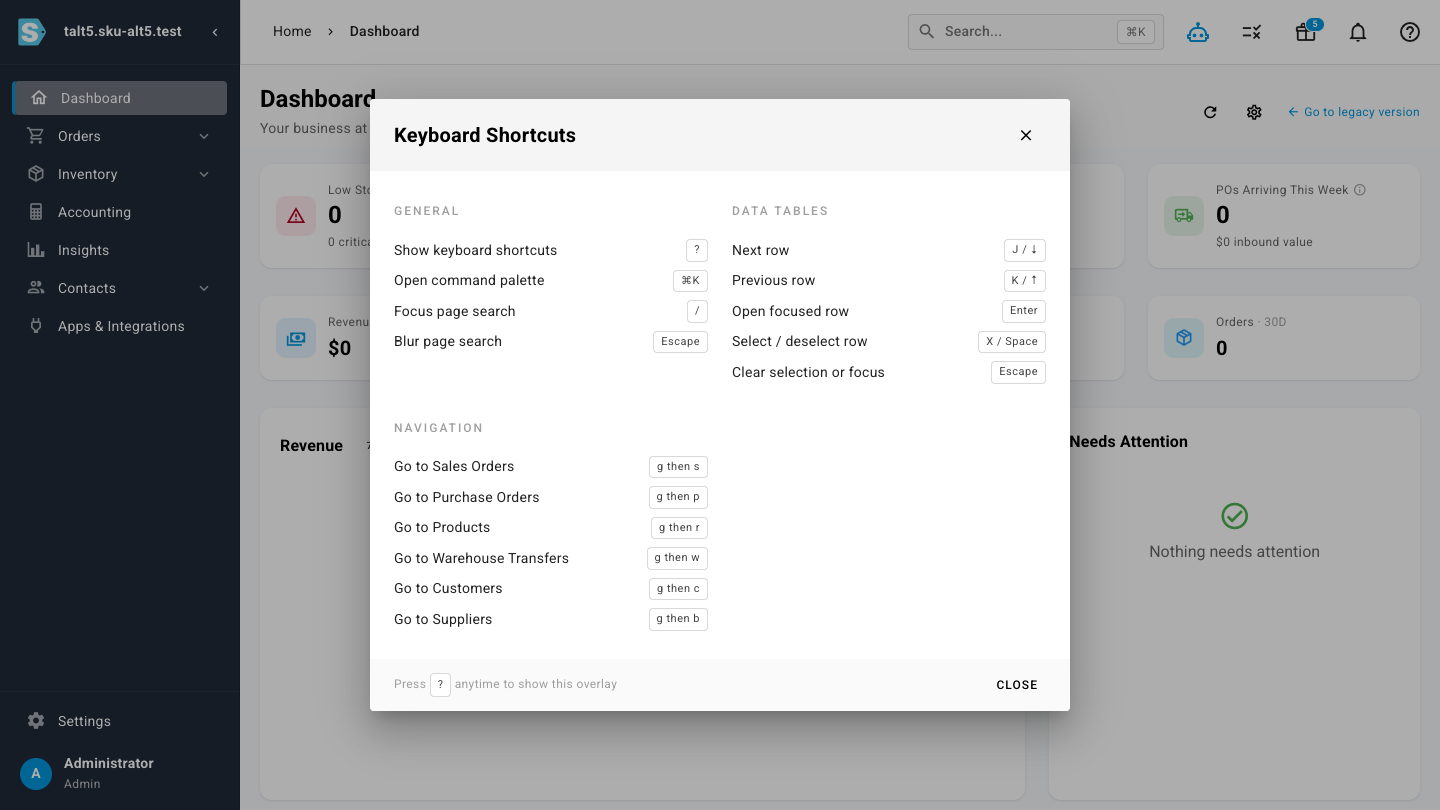
Not sure what's available? Press ? anywhere in SKU to open the keyboard shortcuts overlay. It lays everything out in one place — general shortcuts, data-table navigation, and the go-to navigation chords — so you can learn a few at a time. Press ? again, or Escape, to dismiss it.
Where to find it
The command palette is always a ⌘K (or Ctrl+K on Windows) away — or click the Search bar at the top of any page. Press ? at any time to bring up the full shortcuts overlay, and try g then s, g then r, or g then p to feel how fast keyboard navigation can be.